Light
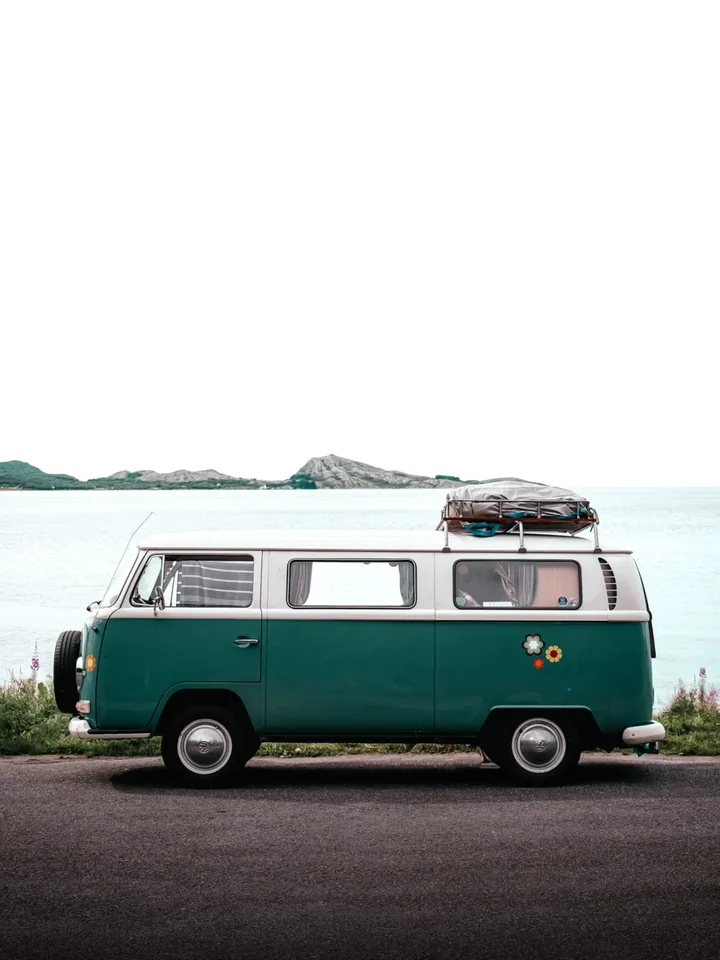
Exposure, contrast, highlights, shadows, whites and blacks. Recover a bright sky or lift a dark corner.
Exposure, contrast, temperature and more. Grade the photo the way you would in a photo editor, while the headline, shapes and everything else on the design stay exactly as set.
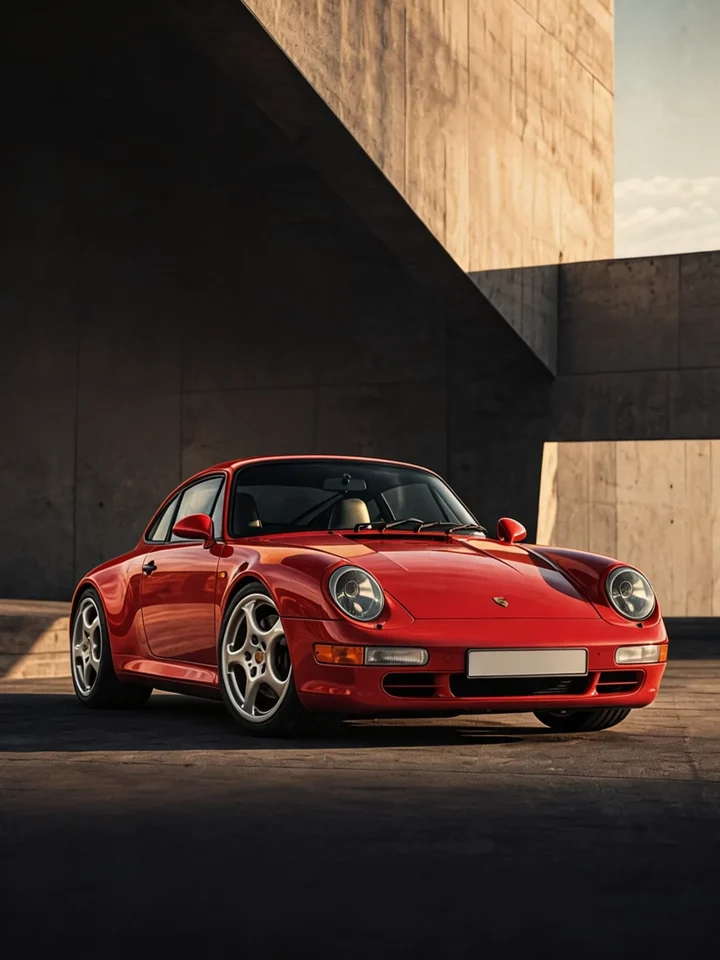
Exposure, contrast, highlights, shadows, whites and blacks. Recover a bright sky or lift a dark corner.
Temperature, tint, vibrance and saturation. Warm up a portrait or quiet a busy background.
Shape the grade on one curve for all three channels, or on red, green and blue alone, with the photo’s histogram behind it.
Adjustments live on the picture, so the headline and graphics over it keep their brand colors.
Your original photo is never changed. Double-click any slider to set it back to zero.
Place up to four lights in the photo’s scene and change where the light falls, after the shot was taken.
Click any picture on your design, including a photo placed inside a shape.
Adjust light and color in the Inspector and watch the canvas update as you drag.
The grade stays with the photo. Crop it, add filters or reset any slider whenever you like.
Each slider runs from −100 to 100 and starts at zero, so a photo you haven’t touched looks exactly as it came in.
No. Adjustments are saved as settings on the picture, so the original stays untouched and every change can be undone or reset.
No. Only the photo is graded. Text, shapes and graphics layered above it keep their own colors.
Yes. Exports are drawn by the same renderer as the canvas, so your PNG, JPG or PDF carries the grade exactly as shown.
Yes. Filters and effects work alongside the adjustments and are applied after the photo has been graded.
Sketch an idea, then refine it with the pen, shapes and every anchor point.
Rewrite, tighten or translate any line. Type, layout and style stay as you made them.
Pandera remembers the fonts, style and tone you use, so every new headline looks and sounds like you.
Design, brand and every finishing tool, in one place. Free to start.